

Dog GPS tracker to real-time phone tracking: complete 2026 workflow
Instead of repeatedly checking where your dog has gone, complete your dog GPS tracker app setup so a compatible collar sends position updates to your phone. Start by confirming phone support, then register the tracker, allow the required permissions and test the complete connection outdoors before relying on it in Ireland.
- For dog GPS tracker app setup, we recommend checking exact model compatibility before installing an app.
- GPS finds the collar’s position; a separate connection delivers that position to your phone.
- Pairing a device is not proof of live tracking: check movement and the location timestamp outdoors.
- Use geofence alerts only after testing notification delivery with your phone locked.
Why this matters
A GPS receiver calculates a position. It does not automatically send that position to a smartphone. Your system also needs a supported route from the collar to the app: a mobile connection, a compatible receiver or another connection specified by the manufacturer.
We recommend phone-compatible GPS tracking for dog owners who need a map on their mobile, not just a separate handheld display. Our guide to GPS trackers for gundogs and working dogs covers the equipment choice before setup.
For your 2026 setup, check the exact model rather than the brand alone. Two collars from the same manufacturer do not necessarily use the same app, receiver or pairing method.
Before you start
- Confirm the complete system. Have the collar’s exact model, its current manual and the manufacturer-named app. Confirm support for your phone and for use in Ireland, including any required mobile service or receiver.
- Prepare the equipment and access. Charge the tracker, phone and receiver if required. Keep the device identifier, registration code and account credentials to hand. Use the manufacturer’s charging instructions.
- Check the hidden compatibility trap. An extra collar is not necessarily a complete tracking kit, and a GPS label does not establish app support. For the Dog Trace Dog GPS X20 Orange Search Engine, confirm the documented receiver and phone capabilities before following an app workflow.
Keep your dog on a lead during setup. Do not use a first connection attempt as an off-lead trial, particularly beside roads, livestock or unfamiliar ground.
Tracker compatibility and connection route
Choose the route your equipment actually supports
The table compares connection types, not interchangeable features. Follow the row that matches the manufacturer’s instructions for your exact hardware.
| Connection type | Best for | Advantage | Limitation | Setup requirement |
|---|---|---|---|---|
| Mobile-connected GPS tracker | Owners who want phone-based viewing where the tracker’s supported mobile network works | Sends positions without a nearby handheld receiver | Position delivery depends on the tracker’s mobile connection | Register the tracker and activate its required service |
| GPS collar with an app-compatible receiver | Owners whose documented system sends collar data through a receiver to a phone | Keeps the receiver within the tracking system | Adds another powered device and connection to check | Pair collar and receiver, then connect the supported app |
| Handheld-only GPS system | Owners who want tracking on a dedicated receiver | Does not require a phone display for its intended operation | Does not provide a phone workflow unless explicitly supported | Follow the handheld setup rather than an unrelated app guide |
Do not try to solve incompatible hardware with phone permissions. Bluetooth, mobile data and location access cannot add a connection that the tracker does not support.
For a second-hand unit in 2026, check that the previous owner has completed any required account transfer. A tracker still registered elsewhere needs the manufacturer’s transfer process, not repeated pairing attempts.
Confirm the hardware before registration
- Read the model identifier on the actual collar and receiver. Match it to the manual, not just the packaging or purchase description.
- Find the manufacturer’s named app in that manual. Check its publisher before installing it from your phone’s official app store.
- Confirm whether the system requires a receiver between collar and phone. Include that receiver throughout setup and testing.
- Check how the device is added: an identifier, a scanned code or a documented pairing procedure. Keep that information private.
Expected result: you can identify the supported app and explain how the collar’s position reaches your phone. If that route is unclear, stop before creating accounts or changing settings.
Account registration and device pairing
Register the correct tracker
App screens differ between models and software versions. Use the field names and buttons in your current manufacturer instructions; a generic button sequence is not a substitute for the right manual.
- Install the official app and complete its account verification process. Use an email address you can access away from home.
- Add the tracker through the app’s documented device-registration process. Enter or scan the identifier from your own unit.
- Complete any required service activation. Confirm the tracker’s supported operation in Ireland before testing away from Wi-Fi.
- Give the device a clear name matching the dog wearing it. Avoid names that are easy to confuse when several collars appear together.
- Follow the documented pairing sequence. If the system uses a receiver, establish the collar-to-receiver connection as well as the receiver-to-phone connection.
Expected result: the correct device appears in the account, and the app recognises its connection status. A device appearing in a list does not yet prove that its location is current.
Allow the permissions the workflow needs
Phone location and collar location are different. Your phone’s location permission supports features such as displaying your position; it does not give an offline collar a fresh GPS fix.
- Allow Bluetooth or nearby-device access if the documented connection requires it. Do not pair through the phone’s Bluetooth menu unless the manufacturer instructs you to do so.
- Allow the location access required for the features you intend to use. Read the permission explanation rather than accepting every request without checking.
- Enable notifications if you need alerts. Also check whether the phone’s focus or notification-silencing settings suppress them.
- Review mobile-data and background-operation permissions where the manufacturer requires them. Avoid removing battery restrictions from unrelated apps.
Expected result: the required connection works, the app can display the relevant location information and alerts are permitted. Recheck these permissions after changing phones or reinstalling the app in 2026.
Outdoor tracking and verification
Prove that the collar position updates
A map pin can show an old fix. The useful test is a changing collar position with a current timestamp, not a map that simply opens.
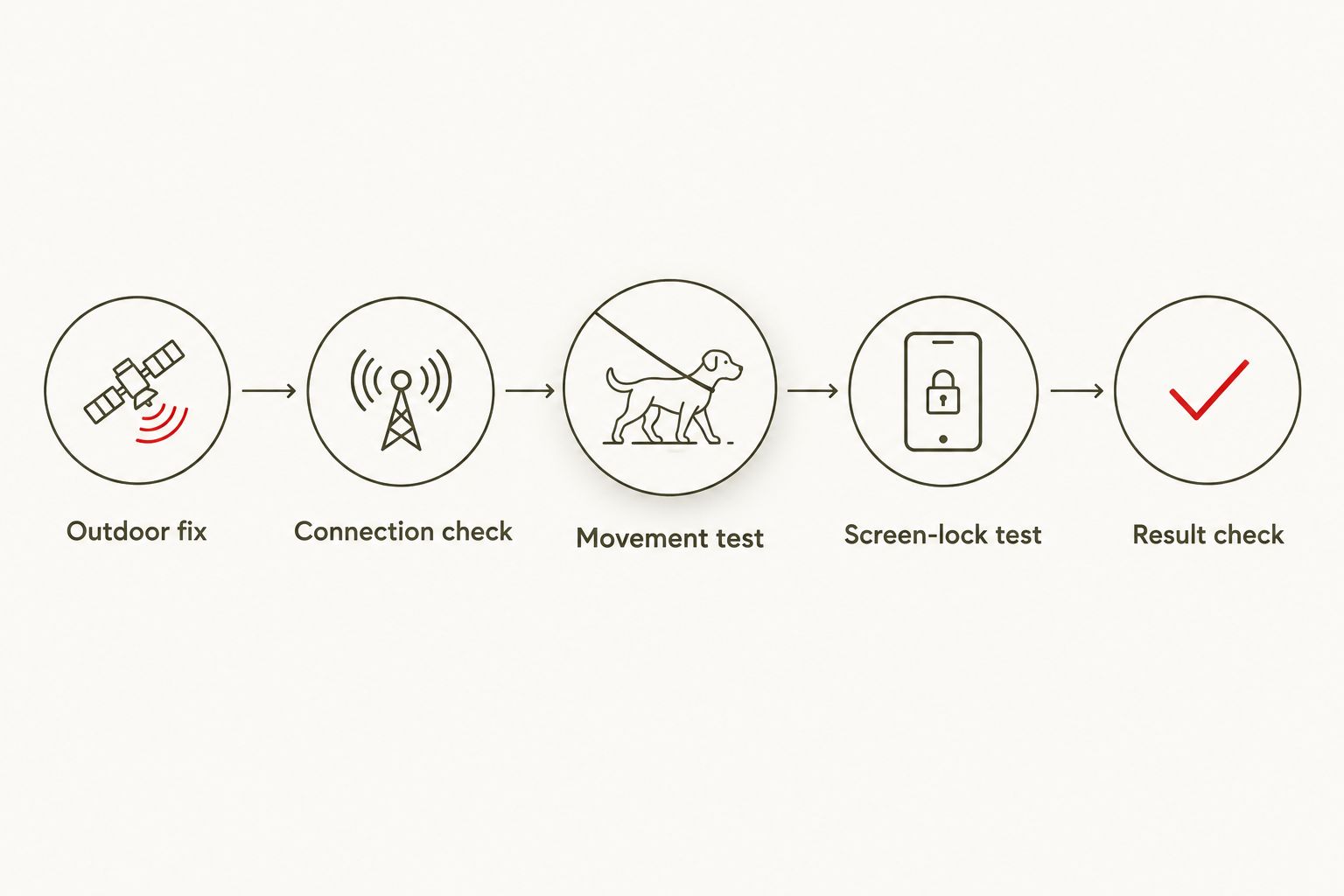
Use this sequence before your first outing. Keep the dog controlled and choose an open, safe area with a clear view of the sky.
- Outdoor fix: switch on the required equipment and let the system obtain a position according to its manual. Confirm that you are viewing the dog’s marker rather than your phone’s marker.
- Connection check: inspect the tracker’s reported connection and the time of its latest position. For a receiver-based system, check both connection stages.
- Movement test: use 2 adults if practical. Have one person walk the dog on a lead while the other watches the map from a safe position.
- Screen-lock test: lock the viewing phone, then reopen the app. Check whether the position updates and whether any enabled test alert arrives as intended.
- Result check: compare the displayed movement with the route actually walked. Resolve stale positions or missed alerts before extending the outing.
Expected result: the dog’s marker follows the controlled movement, and the latest-position time advances. Treat a successful test at home as a starting point, not proof of coverage across your entire route.
Read the map without mistaking history for live tracking
Check 3 things whenever a position looks wrong: the selected dog, the latest-position time and the reported connection. These checks separate a viewing mistake from a missing update without changing settings unnecessarily.
If your app offers a live-tracking mode, use its documented control and read the battery guidance. More frequent transmissions generally increase power use; no universal update interval applies to every tracker.
For your 2026 outings in Ireland, test the places you actually use. A working phone connection at the car park does not establish the collar’s connection along the whole walk, especially when the devices use different networks or communication methods.
Second workflow: alerts when your dog leaves an area
A supported geofence adds notifications to map viewing. It is best for owners who want an additional warning, but it is not a physical boundary or a replacement for supervision.
Only follow this workflow if the manufacturer documents safe-area or boundary alerts for your model. Do not confuse a GPS alert feature with a separate containment system.
- Open the documented boundary feature and place the area around the intended location. Check that you are editing the correct dog’s settings.
- Choose the boundary using the manufacturer’s guidance. Avoid placing it immediately beside a road or treating the mapped line as exact.
- Enable the relevant exit notification. Check both app settings and the phone’s notification permissions.
- Walk the dog across the boundary on a lead in a safe location. Keep another adult with the viewing phone if practical.
- Repeat the notification check with the phone locked. Confirm the alert refers to the correct dog and boundary.
Expected result: the supported alert arrives during a controlled test. If it does not, keep using direct supervision and fix the notification or connection issue before relying on it.
The trade-off is straightforward. Alerts reduce the need to watch the map continuously, but delivery still depends on the system obtaining and communicating the relevant position.
Troubleshooting
The app cannot find the tracker
Check the exact model, official app and documented pairing method first. Then confirm power, required permissions and any receiver connection. Repeated Bluetooth scans will not find a collar that does not connect directly to your phone.
The device is already registered
Use the manufacturer’s account-recovery or ownership-transfer process. For a used tracker, contact the previous owner where required. Do not publish the registration code or device identifier in a public support post.
The map shows a position, but it does not move
Read the latest-position time and connection status. Move into an open area safely, confirm the equipment is powered and check the required mobile or radio connection. A saved position remains historical until a new fix reaches the display.
Tracking works with the app open, but alerts fail when locked
Check notification permissions, focus settings and the manufacturer’s background-operation guidance. Repeat the locked-screen test after each relevant change. Do not assume that opening the app manually proves background alerts work.
The marker jumps or the boundary alert seems wrong
Test in open ground away from buildings and overhead obstruction. Review the boundary placement and the latest-position time before changing its size. GPS positions have uncertainty, so a boundary line is not an exact representation of where your dog can safely go.
Customise your workflow
Build the routine around your outings, not around every feature in the app. For a short local walk, confirm charge, connection and a fresh position before leaving; for a longer trip, also plan how you will protect and recharge the required equipment.
If you add another dog, verify collar compatibility before buying an extra unit. Name each device clearly, then move each collar separately during testing so you can confirm which marker belongs to which dog.
For a shared walking routine, use the manufacturer’s supported sharing feature if one exists. Give access only to the people who need it, test their viewing permissions and remove access when it is no longer required.
Keep a brief setup record for 2026: exact models, app name, required connection stages and the date of your last successful outdoor test. Store account recovery information securely, separately from anything you share with another walker.
FAQ
How do I complete dog GPS tracker app setup?
Confirm that your exact tracker supports a phone app, install the manufacturer-named app and follow its registration and pairing instructions. Then test collar movement, location timestamps and locked-screen notifications outdoors with your dog on a lead.
Can every GPS dog collar connect to a phone?
No. A GPS receiver determines position, but phone tracking also needs a supported communication route and app. Some systems use a dedicated receiver rather than a phone display.
Does a dog GPS tracker need mobile coverage in Ireland?
A mobile-connected tracker needs its supported mobile connection to deliver fresh positions through that route. A radio-based system uses a different connection, so check the exact model rather than assuming all GPS collars work alike.
Why does my dog tracker show an old location?
The app shows an old location when it has not received a newer position. Check the timestamp, equipment power, satellite reception and the communication route between collar and display.
Should I pair my dog tracker in the phone’s Bluetooth settings?
Use the pairing method specified by the manufacturer. Some systems establish connections inside their app, while others use a receiver or do not support direct phone pairing.
Can I get an alert when my dog leaves the garden?
Yes, if your exact system supports boundary alerts and the required connections are working. Test the alert with your dog on a lead and your phone locked; a geofence is not physical containment.
Is real-time dog tracking continuous?
Real-time tracking is not a guarantee of uninterrupted position delivery. Updates depend on the device’s operating mode, satellite reception, power and communication connection; check the latest-position time.
One last thing
A phone can display your own moving position while the dog’s position stays stale. Learn how your app distinguishes those markers before leaving home, then make the collar’s latest-position time part of every pre-walk check.