

Trail camera to phone photos: complete 2026 setup workflow
Instead of removing your camera’s memory card every time you want a photo, set up cellular delivery or local Wi-Fi transfer if your model supports it; otherwise, import the card directly into your phone. This 2026 guide covers each route, from the first connection to checking that your pictures are actually saved.
- Trail camera connect to phone: use cellular for remote delivery, Wi-Fi nearby, or an SD card reader for manual imports.
- Wi-Fi transfer does not mean your trail camera can send pictures while you are away.
- We recommend matching the connection method to your site in Ireland before choosing a trail camera.
- Test a saved photo with the camera disconnected before leaving your setup in the field.
Why this matters
A trail camera taking pictures and a phone receiving pictures are separate jobs. A working motion sensor does not prove that wireless transfer, mobile coverage or phone storage is working.
For wildlife watching in Ireland, decide whether you need pictures from home or can collect them during a visit. Our guide to trail cameras for wildlife photography in Ireland covers the wider camera choice; this guide deals with getting the files onto your phone.
The main setup decision in 2026 is still the connection type. An app cannot add a cellular modem or Wi-Fi radio to a camera that lacks one.
Before you start
- Check the exact model and its manual. Confirm whether it supports cellular delivery, local Wi-Fi transfer, card recording, or a combination. Have the specified batteries and memory card ready.
- Prepare your phone and access. Install the manufacturer’s named app where required. Have your account details, camera activation code and any required service activation ready. For card imports, match the reader to your phone’s connector and memory card.
- Catch the connection trap early. A camera-created Wi-Fi network can have no internet access and still transfer photos correctly. Cellular cameras also need supported network coverage at the camera site, not just reception on your phone at home.
Save the manual on your phone before heading out. For a 2026 installation, use the instructions for your exact hardware version rather than a similar-looking camera.
Choose your transfer route
These are connection methods, not interchangeable features. Check which ones your camera actually supports before following the steps.
| Connection method | Best for | Main advantage | Main limitation |
|---|---|---|---|
| Cellular delivery | Receiving pictures away from the camera | Sends supported images through a mobile network | Depends on compatible service, coverage and power |
| Local Wi-Fi | Collecting photos near the camera | Transfers supported files without removing the card | Requires a nearby connection; does not itself provide remote access |
| SD card reader | Importing recordings during a site visit | Works without camera wireless features | Requires physical access and a compatible reader |
We recommend cellular trail cameras for people who need remote pictures, and local transfer for people who already visit the site. Neither route removes the need to check batteries, storage and positioning.
Camera recording setup
Get the recording side working before pairing anything. Otherwise, a blank app leaves you guessing whether the fault is capture or transfer.
- Insert the battery type and memory card specified in the camera manual. Switch the camera off before inserting or removing either.
- Back up any existing card contents. Use the camera’s documented card-formatting procedure if required; formatting erases the card.
- Set the date and time. Check the year reads 2026, then confirm the local time and any daylight-saving setting.
- Select still-photo recording for the initial test. Leave video and combined recording until the basic photo workflow works.
- Take 3 test photos using the documented test procedure or separate motion events. Check the camera’s playback screen if it has one, or inspect the card through a reader.
Expected result: the camera stores readable pictures with the correct timestamp. Do not troubleshoot the phone connection until this test passes.
Choose a recognisable test subject. A gatepost or empty path makes it easy to distinguish a new picture from an old file. Avoid using a person’s face as your routine test image.
Phone connection setup
Follow only the branch your camera supports. There is no universal trail-camera pairing button, and app labels differ by manufacturer.
Cellular registration
- Open the manufacturer’s specified app and sign into the account that will manage the camera. Complete account verification if requested.
- Follow the app’s camera-registration instructions. Scan or enter the identifier printed on the camera or supplied activation material, as directed.
- Complete the required cellular activation. Use the supplied or specified SIM arrangement; do not replace an integrated SIM unless the manual permits it.
- Power on the camera and follow its documented network-registration sequence. Check the camera’s own connection indicator or app status.
- Trigger a fresh photo. Leave the camera powered on while it completes the configured transmission cycle.
Expected result: a newly captured image appears in the correct camera’s app gallery. An account showing the camera’s name alone is not proof of successful delivery.
For an Irish site, test at the intended mounting position. A successful connection beside the house does not establish coverage behind a stone outbuilding or in a wooded hollow.
Local Wi-Fi pairing
- Install the app named in the camera manual. Enable the camera’s wireless mode using its documented controls.
- If the manual requires Bluetooth discovery, enable Bluetooth and allow the requested device access. Bluetooth discovery and photo transfer are not necessarily the same connection.
- If instructed, open your phone’s Settings, then Wi-Fi, and select the camera’s network. Enter the password supplied with the camera or set during configuration.
- Keep the camera network selected if your phone reports that it has no internet connection. Return to the camera app.
- Open the image gallery and download a test photo. Stay near the camera until the transfer finishes.
Expected result: you can open a newly downloaded image on the phone. Seeing a preview inside the app does not yet prove that a full file has been saved.
Do not assume a Wi-Fi camera joins your home router. Some models create their own local network; others support different arrangements. Follow the documented method for your model.
Photo transfer and saved-file checks
Once you can see a picture, prove that you can keep it. This matters whether your 2026 setup uses cellular delivery, Wi-Fi or a reader.
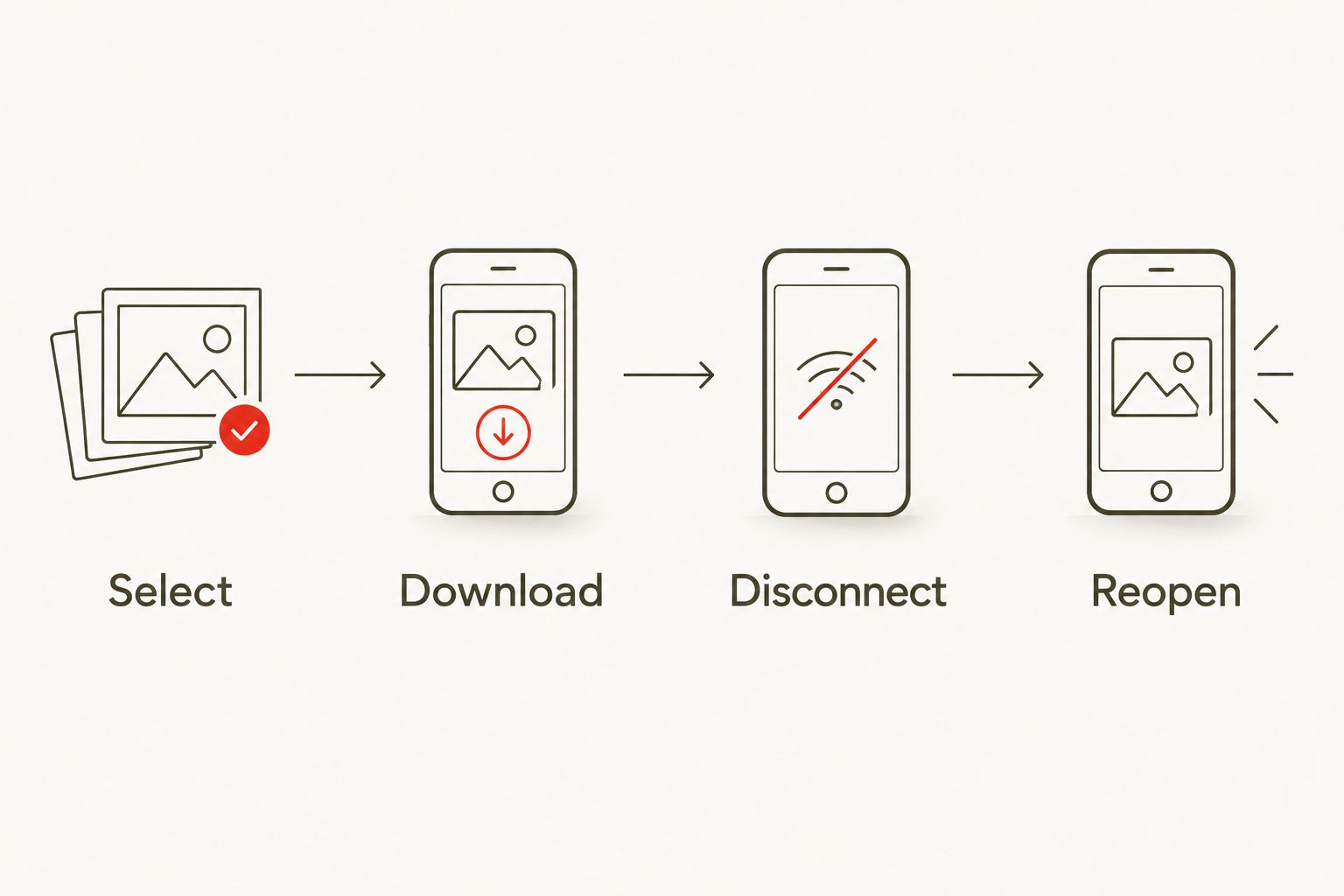
- Select 1 test photo and use the app’s documented download or export action. Choose the original file where that option exists and you need the recorded detail.
- Allow photo-library or file-storage access when the phone requests it and that access is needed for saving.
- Open the saved image outside the camera’s live gallery. Check your phone’s photo library or the destination folder you selected.
- Disconnect from the camera’s Wi-Fi, or close the camera app after export. Reopen the saved file and enlarge it to inspect the subject.
- Check the timestamp and orientation. Confirm you exported the new test picture, not an earlier thumbnail.
Expected result: the photo remains readable without an active camera connection. Keep 2 copies of important originals in separate storage locations before clearing the camera card.
Cellular galleries can display transmitted previews rather than the complete files recorded on the card. Check the camera’s documented export options before treating an app image as the original. Do not delete the card contents simply because the gallery looks complete.
Field placement and final test
A bench test checks the workflow. A field test checks the actual installation.
- Get permission to place the camera. Aim it at the intended wildlife area or your own property, avoiding neighbouring private areas and unnecessary capture of passers-by.
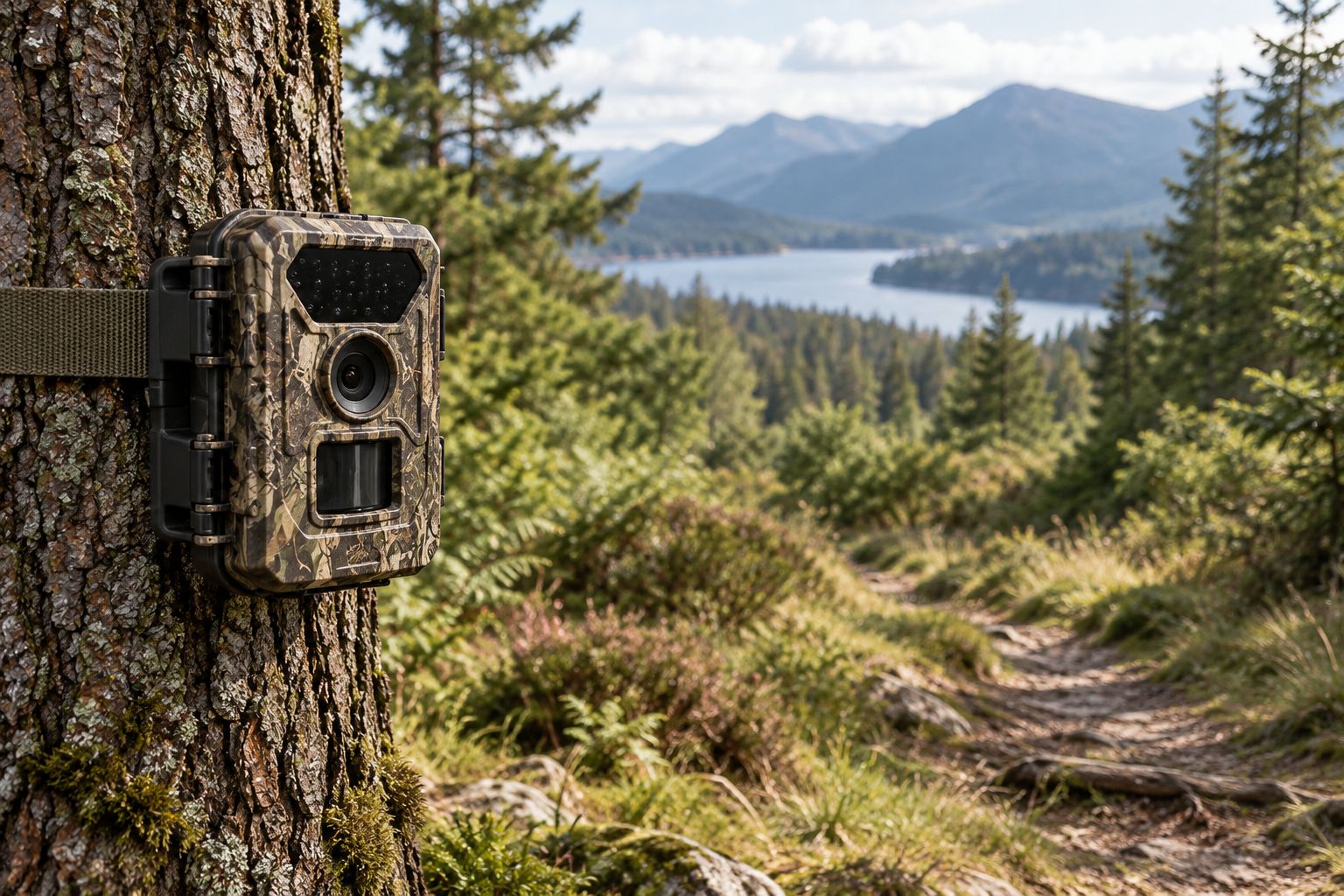
- Secure the camera using the manufacturer’s mounting instructions. Keep vegetation away from the lens and motion-sensor view.
- Close covers and check seals before leaving it outside. Do not open the card compartment in rain.
- Trigger a fresh recording at the final position. For cellular delivery, verify arrival on your phone; for Wi-Fi, reconnect nearby and download it.
- Return the camera to its recording mode after testing. Check that setup mode or an open wireless session has not left it unable to record normally.
Expected result: the installed camera captures the intended area and completes your chosen transfer route.
Record the camera location and test date somewhere private. For multiple cameras, use distinct names that match your own site notes, without publishing sensitive locations in shared filenames.
Get photos whenever motion triggers the camera
Automatic remote delivery is the adjacent workflow for cellular-capable models. Local Wi-Fi alone cannot send pictures to your phone after you leave its connection area.
In the cellular app or camera menu, find the documented transmission controls. Choose the supported delivery schedule that matches your purpose, then enable phone notifications if you want alerts. Motion detection, image transmission and phone notifications are separate settings.
Test them separately:
- Capture: create a new motion event and confirm a picture is recorded.
- Delivery: check that the new picture reaches the app under the selected schedule.
- Notification: lock your phone and check whether the alert appears.
Immediate delivery, scheduled uploads and on-demand capture are model-specific features. Enable only the functions listed for your camera. More frequent transmissions also add power use, so check the manufacturer’s battery guidance before changing the schedule.
Troubleshooting
The phone joins Wi-Fi, but the gallery stays empty
First confirm that the camera has recorded photos. Then check that you selected the camera’s network rather than your home network, and return to the correct app. Keep the local connection even when the phone reports no internet access.
The camera appears in the app, but sends nothing
Registration is not the same as transmission. Check activation, battery condition, antenna connection where applicable, and the camera’s network status at the site. Trigger a new image and check the configured upload schedule before resetting anything.
The picture appears, but is missing from the phone library
An app preview is not necessarily a saved photo. Use the documented export action and check the chosen destination. Review the app’s photo or file permissions in your phone’s Settings, then repeat the saved-file check.
The card reader connects, but no pictures open
Confirm that the reader supports the card and phone connector. Check the phone’s file browser as well as its photo-import view. If the card is unreadable, stop writing to it; do not format it while trying to recover important recordings.
Photos arrive, but alerts do not
Open the app to confirm delivery first. If pictures are there, check notification permission, muted camera alerts, phone focus settings and background restrictions. A successful upload with no alert points to notification settings rather than camera capture.
Customize your workflow
We recommend proving still-photo transfer before adding video, extra cameras or shared access. Change one setting at a time and repeat the capture, delivery and saved-file checks.
For repeat wildlife observations, keep the camera name, location notes and clock setting consistent. Our guide to trail cameras for wildlife researchers covers that more structured use.
For manual imports, switch the camera off, remove the card in a dry place and connect it through a compatible phone reader. Copy the files, open a sample, then safely disconnect the reader before returning the card. Never remove it while the camera is recording or writing files.
FAQ
How do I connect a trail camera to my phone in 2026?
Use the connection your camera supports: cellular delivery through its specified app, nearby Wi-Fi transfer, or a compatible memory-card reader. Confirm the exact model’s capabilities before installing an app or buying an adapter.
Can a trail camera send pictures to my phone without Wi-Fi?
A cellular-capable camera can send supported pictures through a mobile network without local Wi-Fi. It still needs compatible activation, coverage and power at the camera site.
Can I connect any trail camera using Bluetooth?
No. The camera must explicitly support Bluetooth, and Bluetooth discovery does not automatically mean photo transfer. Follow the model’s documented connection sequence.
Why does my trail camera Wi-Fi say no internet?
A camera-created Wi-Fi network can transfer photos without providing internet access. Keep that network selected during local transfer if the camera manual instructs you to use it.
Can I get trail camera photos on my phone without an app?
You can import files through a compatible memory-card reader if your phone supports the reader and file format. Switch the camera off before removing the card, then copy and check the files before deleting anything.
Will a cellular trail camera work anywhere in Ireland?
No. Delivery depends on supported mobile coverage at the camera’s exact position, alongside activation and power. Test a fresh image from the final mounting location.
Why can I see a picture in the app but not in my phone photos?
The app can show a gallery image without exporting it to your phone’s photo library. Use its download or export action, then reopen the saved file outside the camera gallery.
One last thing
The best final test is a disconnected phone. Finish your 2026 setup by opening an exported picture after leaving the camera’s Wi-Fi or closing its app. That catches the difference between viewing a picture and keeping one.