

How to connect a HikMicro thermal camera to your smartphone
Instead of passing your thermal camera around or waiting until you get home to view recordings, connect a supported HIKMICRO outdoor device to HIKMICRO Sight through its Wi-Fi hotspot. Enable the hotspot on the camera, join that network on your smartphone, then open the device in the app for live viewing and supported file transfers.
- For the hikmicro app connect phone workflow, use HIKMICRO Sight with a supported outdoor thermal device.
- Join the thermal camera’s Wi-Fi hotspot, not your home router or a Bluetooth pairing screen.
- A no-internet warning does not mean the camera connection has failed.
- Check live view and download a test recording before your next trip in Ireland.
Why this matters
HIKMICRO Sight is the right app for owners of supported HIKMICRO outdoor thermal devices who want phone-based viewing and file transfers. The connection is local: your phone communicates with the camera’s hotspot. That hotspot is not an internet connection.
Check the exact model before starting. For example, the Hikmicro Falcon FQ50 2.0 thermal monocular has its own operating instructions; another model’s button sequence is not a reliable substitute.
For a 2026 setup, use the current app listing and the manual for your exact device. Screens and permission prompts differ between phones, app releases and camera firmware. Follow the connection sequence below without assuming every menu looks identical.
Before you start
- Have the camera, phone and correct instructions ready. Charge both devices, identify the full camera model and confirm that its manual specifies HIKMICRO Sight. This guide covers supported outdoor thermal devices, not every camera carrying the HIKMICRO name.
- Install the app while you have internet access. Use your phone’s official app store and check the publisher. Complete any initial app prompts before switching to the camera’s network. Keep the model manual accessible offline.
- Expect a network without internet. Your phone can reject or leave the camera hotspot because it cannot reach the internet through it. Keep the camera connection selected during setup; a mobile-data signal is not proof that the app can reach the camera.
We recommend completing the first connection indoors, with both devices dry and within 1 metre of each other. This is a practical setup position, not a stated wireless range. Get the connection working before testing it outside in Irish weather.
Do not guess a hotspot password from an online guide for a different model. Use the credentials or password procedure specified by your camera’s manual or connection screen. A previously changed password takes precedence over an original default.
App preparation
- Confirm the app name. Find HIKMICRO Sight in your phone’s official app store. Check that the camera manual identifies the same app before installing it.
- Open the app before changing networks. Complete the introductory prompts and any setup required by the version installed on your phone. Do this while internet access is working.
- Allow the permissions needed for connection. On an iPhone, allow Local Network access when requested. On Android, follow the network-discovery permission prompts presented by your phone; these vary by operating-system version.
- Prepare file permissions separately. When you later save a recording, allow the photo, video or storage access requested for that action. Network access and permission to save files are different settings.
Expected result: HIKMICRO Sight opens normally, and the phone has permission to discover or communicate with a local device. The thermal camera does not need to appear yet because you have not joined its hotspot.
If you previously denied a permission, revisit the app’s permission settings on the phone. Reinstalling the app is not the first fix. Correct the blocked permission and try again.
As part of your 2026 preparation, keep a note of the app version and camera firmware version. These details help distinguish a connection problem from a changed menu layout when you consult the manufacturer’s instructions.
Camera hotspot
- Switch on the thermal camera. Wait until the normal viewing screen is ready. Do not begin while the camera is shutting down or performing an update.
- Open the camera’s menu. Follow the button sequence in the model manual. A short press and a long press can perform different actions, so use the documented sequence.
- Enable the hotspot. Select Hotspot where that is the label used by your model. If your manual uses a different name, follow that model’s wireless-connection instructions rather than searching for an identical screen.
- Identify the network and credentials. Note the hotspot name and obtain the password using the method specified for your device. Keep the camera powered on while connecting the phone.
Expected result: The camera indicates that its hotspot is enabled, and its network becomes visible in the phone’s available Wi-Fi networks. An enabled hotspot is only the first half of the connection; the phone must join it next.
Do not connect the camera to your home router unless the exact model instructions require that method. The workflow here uses the camera as the hotspot and the smartphone as the connected device.
If several thermal devices are switched on nearby, identify yours by the network name specified for that unit. Joining a nearby camera’s network creates a confusing result: the phone has Wi-Fi, but not a connection to your camera.
Phone Wi-Fi connection
- Open the phone’s network settings. On an iPhone, open Settings, then Wi-Fi. On Android, open the Wi-Fi network list through your phone’s settings; the route varies by manufacturer.
- Select the camera’s hotspot. Match the network name to your device. Enter its current password carefully, preserving capital letters and other characters.
- Keep the local connection. If the phone warns that the network has no internet, choose the option that keeps it connected. The exact warning and button wording depend on the phone.
- Check the selected network. Confirm that the camera’s hotspot remains the active Wi-Fi connection before returning to HIKMICRO Sight. Do not leave this check to the signal icon alone.
Expected result: The phone’s Wi-Fi settings show the camera network as connected. Internet access through that network is not required for the local camera link.
Stay on the camera hotspot even when the phone reports no internet. Opening a webpage is the wrong connection test. It checks internet access, not communication between HIKMICRO Sight and the thermal camera.
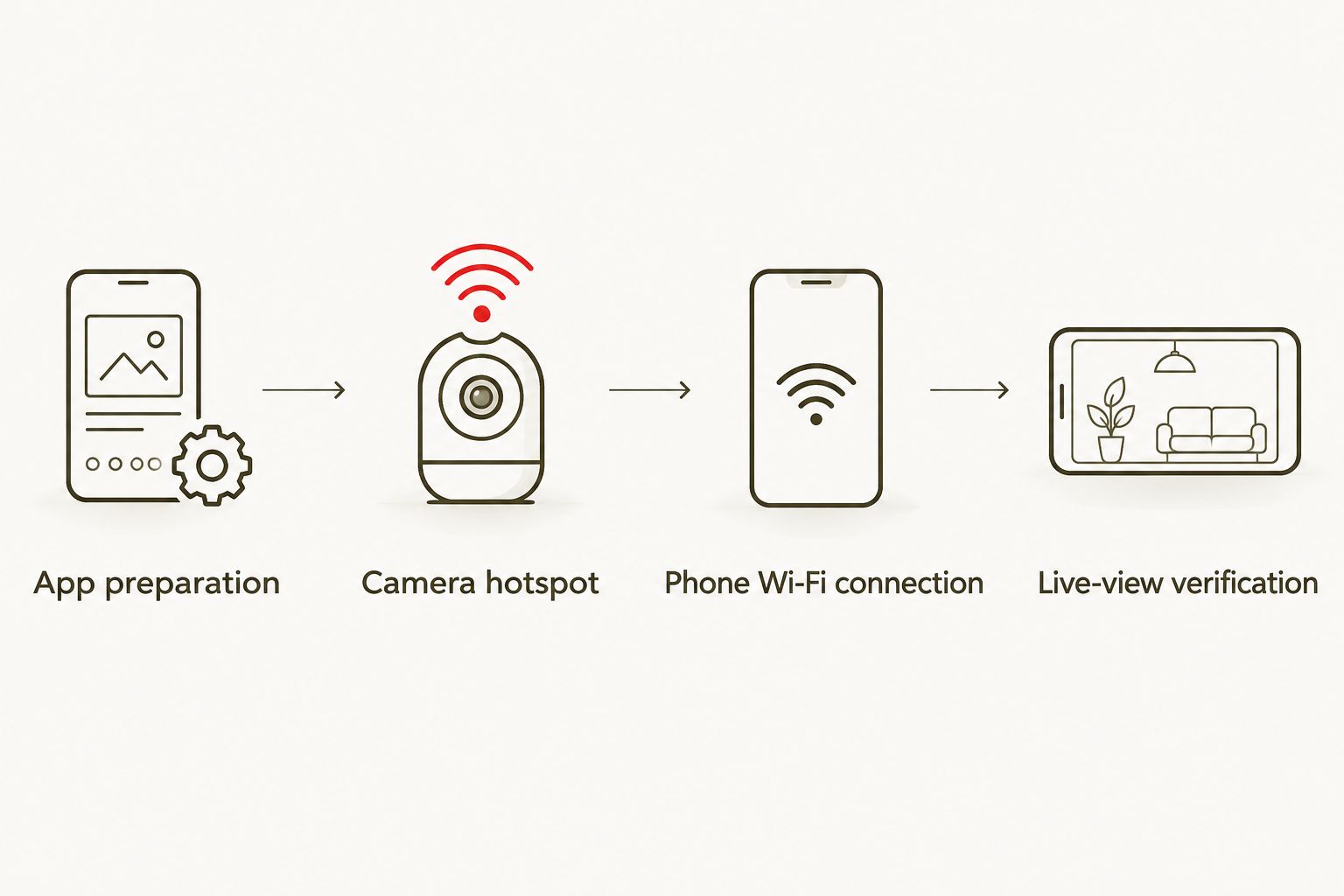
Live-view verification
- Return to HIKMICRO Sight. Open the device connection area and follow the on-screen instructions to connect your supported camera. Select the correct device if more than one is listed.
- Open the connected camera’s live view. Use the viewing control shown for that device. Keep the camera awake while checking the feed.
- Check that the image is live. Move the camera gently towards a different safe scene. Confirm that the phone image changes with the camera rather than displaying a saved photograph.
- Test saving separately. Create 1 test photo and 1 short video clip, using the recording controls supported by your model. Transfer a test file through the app and open the saved copy on your phone.
Expected result: You can see a changing live image and open a transferred recording. These are separate checks: live view working does not prove that the phone has permission to save files.
We recommend this complete test before your first outdoor session in Ireland. A successful Wi-Fi connection at home is useful, but a verified recording is the better end-to-end check.
For a 2026 connection check, close the app, reopen it and confirm that you can reconnect while the phone remains on the camera hotspot. This tests the workflow you will repeat in the field without changing passwords or resetting the camera.
Second workflow: transfer recordings after your session
You do not need to keep live view running simply to collect recordings later. Where your model supports recording to its own memory, record on the device and reconnect the phone when you are ready to transfer files.
- Enable the camera hotspot and join it from the phone, following the same connection steps.
- Open the connected device’s recording browser in HIKMICRO Sight. Distinguish recordings held on the camera from files already saved locally in the app.
- Select the required files and use the download control shown by your app version. Keep the camera powered on and the phone connected until the transfer finishes.
- Open the downloaded files locally. Confirm that the files you need are readable before deleting anything from the camera.
Expected result: Your chosen recordings remain accessible on the phone after you disconnect from the thermal camera. A preview thumbnail alone does not confirm a completed download.
Live viewing or later transfer?
| Workflow | Best for | Advantage | Limitation |
|---|---|---|---|
| Live viewing | Sharing the current view with someone beside you | Another person can follow the supported camera feed on a phone | The phone must maintain the local connection during viewing |
| Later transfer | Reviewing and keeping recordings after a session | You can concentrate on the camera first and organise files afterwards | You must record the material on the device before transferring it |
Choose live viewing for a shared view; choose later transfer for reviewing recorded material. Neither workflow turns a local hotspot connection into remote viewing from another location.
Troubleshooting
The camera hotspot does not appear
Check that the camera is fully switched on and that its hotspot setting remains enabled. Refresh the phone’s Wi-Fi list with the devices close together. If the network is still absent, toggle the camera hotspot off and on using the model’s documented controls.
Check the manual before changing wireless-band settings. Do not assume that a setting shown in another model’s video exists on your camera.
The phone rejects the password
Confirm that you selected the correct camera network. Then check the current password against the device instructions or connection information. If the phone has stored an old password, forget that network and reconnect with the current credentials.
Avoid a factory reset as the first response. It changes more than the phone’s saved Wi-Fi password.
Wi-Fi connects, but HIKMICRO Sight cannot find the camera
Return to the phone’s Wi-Fi settings and confirm that the camera hotspot is still selected. Next, check HIKMICRO Sight’s local-network or discovery permissions. Close and reopen the app after correcting the connection or permissions.
A VPN can also interfere with local-device communication. Temporarily disconnect it for the connection test, then restore your normal settings afterwards.
The connection drops or the live image freezes
Check whether the phone has switched back to another saved Wi-Fi network. Keep the camera hotspot selected and test with both devices close together, without obstacles between them. Confirm that the camera has not entered a power-saving state that interrupts the connection.
Change one setting at a time. Otherwise, you lose track of which change fixed the fault.
Files appear in the app but not in the phone’s gallery
Check whether the files are still on the camera, downloaded into the app, or exported to the phone’s photo library. These are different locations. Complete the download or export action provided by the app, and check its photo or storage permissions.
Open the resulting file from its destination. Do not delete the camera copy until that check succeeds.
Customise your workflow
Build a repeatable routine rather than changing settings on every outing. Before leaving, check power, available storage and the saved camera network. At the end of the session, transfer the files you want and verify them locally.
For wet conditions in Ireland, read our guide to waterproof phone cases for kayaking and fishing. Phone protection is separate from wireless setup; a working app connection does not protect either device from water.
Keep your 2026 connection notes short: camera model, app version, firmware version and the last successful test. Keep the hotspot password private rather than including it in shared screenshots.
FAQ
Which HIKMICRO app do I need to connect my thermal camera to my phone?
Use HIKMICRO Sight when your outdoor thermal camera’s manual specifies it. Confirm the exact model first, because the HIKMICRO name covers different device categories and does not establish app compatibility by itself.
Do I connect my HIKMICRO thermal camera by Bluetooth or Wi-Fi?
This HIKMICRO Sight workflow uses the camera’s Wi-Fi hotspot. Enable the hotspot on the camera, join it from your smartphone and then connect to the device in the app.
Why does my phone say no internet when connected to HIKMICRO?
The camera hotspot provides a local device connection, not an internet connection. Keep the phone connected to that network and test the camera through HIKMICRO Sight rather than through a webpage.
What is the Wi-Fi password for my HIKMICRO thermal camera?
Use the current password or password procedure specified for your exact camera. Check its manual or connection information instead of assuming that a password for another model applies.
Can I connect a HIKMICRO thermal camera to an iPhone?
A supported HIKMICRO outdoor device can connect through HIKMICRO Sight on a compatible iPhone. Check the current app requirements, join the camera hotspot and allow Local Network access when requested.
Can I download thermal videos to my Android phone?
You can transfer recordings through HIKMICRO Sight when your camera supports that function. Keep the camera hotspot connected during transfer and grant the file or media permissions requested by your phone.
Can I watch my thermal camera from home while it is somewhere else?
The direct hotspot workflow does not provide remote viewing from another location. The phone must maintain its local wireless connection to the camera; do not treat this setup as an internet-connected monitoring system.
One last thing
The strongest connection test happens after you disconnect. Download a test recording, leave the camera hotspot and open that file on the phone. If it opens locally, you have checked more than pairing: you have confirmed that the recording reached its destination.